


ZTime is a critical factor for authentication and other processes, which is why you need to ensure from the start that it is working properly in your setup. Deploying Citrix NetScaler in a High Availability (HA) pair is very common, especially when it comes to the VPX editions. The first thing you should ensure is that the time between both NetScalers is synchronized.
Here are some examples of what happens if the time is not synchronized either within the HA cluster or between clients and systems.
Citrix ShareFile
ShareFile with SAML single sign-on (SSON) relies heavily on the SAML token and a 180-second lifetime. SSON will fail, and you won’t receive a very helpful error message. You actually have to decode the SAML request.
Citrix Director
Director uses a .NET token for the user session. If you use a NetScaler for load balancing on Director instances that are out of sync, you will encounter a login error. Checking the event log will reveal some indications that the token is invalid. Citrix
StoreFront
Another scenario where you get the infamous „Cannot complete your request“ error message. Again, this can happen if StoreFront is load-balanced and the Netscalers in the high-availability cluster are out of sync.
You should set the time immediately after the basic setup, and perhaps Citrix should include that in the setup configuration.
Here's a quick walkthrough:
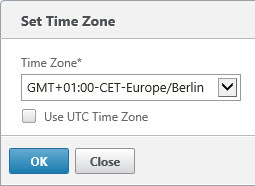
- Set Time Zone
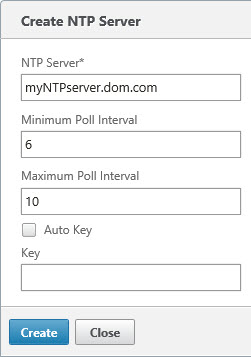
- Set NTP server
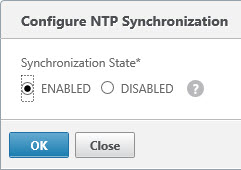
- Set NTP server to active
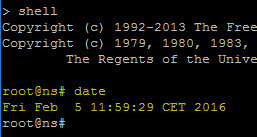
- Check the time on the Netscaler CLI
In detail:
1. Go to System | Settings | Change Time Zone
2. Go to System | NTP Server | Add Server
3. Go to System | NTP Server | Select Server | Action | NTP Synchronization
4. Connect to Netscaler CL via SSH (PuTTY) | Go to the shell | Enter the „date“ command


 German
  English