

IIn Citrix Virtual Apps and Desktops (CVDA) version 24.02, the management of PVS machine catalogs has been significantly reduced and is limited to deleting the catalogs and machines. The following section briefly explains how to create PVS catalogs or add existing PVS targets.
There are two ways to manage PVS machine catalogs: either via PowerShell or via the PVS console. Both options are briefly explained below.
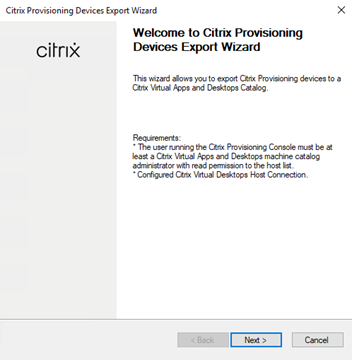
PVS Console | Export Device Wizard
The easiest method is to use the Export Device Wizard, which can be accessed by right-clicking on the site. Follow the wizard's instructions, but please note:
- Physical devices are machines that do not have power management in the machine catalog, i.e., without a hypervisor connection.
- Virtual devices are machines that have power management in the machine catalog, i.e., with hypervisor connectivity.
- Functionality level of the machine catalog: If the catalog has a different functionality level, this will be specified in the wizard not displayed!
PowerShell
Without a hypervisor connection
- To create a new PVS machine catalog that does not have a hypervisor connection, use the following command:
New-BrokerCatalog -PersistUserChanges Discard -ProvisioningType PVS -MachinesArePhysical $true -Description "[Description]" -SessionSupport MultiSession -Name [Catalog Name] -AllocationType Random -IsRemotePC $false -PvsAddress pvs.server.local -PvsDomain domain.de -
To add a machine to the catalog, follow these steps
Get-BrokerCatalog -Name [PVS Catalog Name]and here is the VAT ID Enter, for example, "10", and then add the machine using the following command:New-BrokerMachine -CatalogUid 10 -MachineName 'domain\machineName' -InMaintenanceMode $true
With hypervisor integration
- To create a new PVS machine catalog with hypervisor integration, use the following command:
New-BrokerCatalog -PersistUserChanges Discard -ProvisioningType PVS -MachinesArePhysical $false -Description "[Description]" -SessionSupport MultiSession -Name [Catalog Name] -AllocationType Random -IsRemotePC $false -PvsAddress pvs.server.local -PvsDomain domain.de - To add a machine to the catalog, follow these steps
Get-BrokerCatalog -Name [PVS Catalog Name]and here is the VAT ID Read, for example, 10, and then use the following command to VAT ID from the hypervisor connection:Get-BrokerHypervisorConnectionFor the ID The following command is required for the machine:Get-ChildItem -Path "xdhyp:connections" -force -Recurse -include "MachineName.vm"Using the information gathered earlier, the machine can then be added as follows:New-BrokerMachine -CatalogUid 10 -MachineName 'domain\machineName' -InMaintenanceMode $true -HypervisorConnectionUid 1 -HostedMachineId 'bed6d4a1-83f7-4717-adb3-ff6474ce7cf9'
 German
  English