


MMicrosoft is forcing its customers to use the „new teams“to switch over—and all by mid-2024! The feedback so far is that customers are once again Beta tester and Microsoft hasn't even conducted extensive testing. For example, there are issues with Microsoft FSLogix and the Outlook add-in. The „new Teams“ is also available on a Server 2019 or Server 2022 is yet another challenge. I've developed a PowerShell script that sets up Teams on Server 2022, Server 2019, Windows 10, and Windows 11 installed in a multi-user environment and the Outlook add-in is also taken into account.
The Team installation itself is straightforward, but it also requires installing the EdgeWebView Runtime version, and the whole process—involving registry entries and the like—isn't exactly easy. With that in mind, I have specifically chosen to install the new teams on VDI systems, PowerShell scripts were created for the installation.
Let's start with FSLogix and the fact that FSLogix Profiles which is the best option, and whether using Office Containers or FSLogix profiles in combination with Office Containers causes issues with the „new Teams.“ Microsoft has released an initial version of FSLogix to address this issue, which is intended to resolve several issues with the „new Teams.“ The following paths should be specified as exceptions for FSLogix:
AppData\Local\Packages\MSTeams_8wekyb3d8bbwe\LocalCache\Microsoft\MSTeams\LogsAppData\Local\Packages\MSTeams_8wekyb3d8bbwe\LocalCache\Microsoft\MSTeams\PerfLogAppData\Local\Packages\MSTeams_8wekyb3d8bbwe\LocalCache\Microsoft\MSTeams\EBWebView\WV2Profile_tfw\WebStorageAppData\Local\Packages\MSTeams_8wekyb3d8bbwe\LocalCache\Microsoft\MSTeams\EBWebView\WV2Profile_tfw\GPUCache
Unfortunately, Microsoft has only made a half-hearted effort to update Teams, so while the installation is provided as an MSIX package, it includes an MSI package for the Teams Outlook add-in. This causes problems on Server 2022, and although there’s been a lot written about it, there hasn’t been a solution—until now! After a long analysis of the problem on Server 2022, I noticed that Server 2022, as Standard .NET 6.x enabled has. Version „compatibility“ is a tricky thing, so I just .NET 3.x It was enabled on the server in 2022, and only then did the add-in load properly.
Server 2019 requires a different approach and additional components. The script for 2019 also downloads all necessary media files at once and therefore requires an internet connection.
However, for the loading to work at all, Outlook must be „forced“ to do so using the following registry values:
HKCU\Software\Microsoft\Office\Outlook\Addins\TeamsAddin.FastConnectLoadBehavior REG_DWORD = 0x00000003
HKCU\Software\Microsoft\Office\Outlook\Addins\TeamsAddin.FastConnectDescription REG_SZ = Microsoft Teams Meeting Add-in for Microsoft Office
HKCU\Software\Microsoft\Office\Outlook\Addins\TeamsAddin.FastConnectFriendlyName REG_SZ = Microsoft Teams Meeting Add-in for Microsoft Office
HKCU\Software\Microsoft\Office\16.0\Outlook\Resiliency\DoNotDisableAddinListTeamsAddin.FastConnect REG_DWORD = 0x00000001
However, the Teams add-in should also be installed manually so that it is loaded centrally for all users and is not stored in the user’s profile. With this in mind, Teams’ auto-update feature should also be disabled. The installation also requires the specific version of the add-in to prevent issues with future updates. The script takes all these points into account.
Citrix Virtual Channel
To ensure that the new Teams is fully functional, the following paths must also be added to the Approved List for Virtual Channels can be added to a Citrix policy:
- MSTEAMS,C:\Program Files\WindowsApps\MSTeams*8wekyb3d8bbwe\ms-teams.exe
- MSTEAM1,C:\Program Files\WindowsApps\MSTeams*8wekyb3d8bbwe\ms-teams.exe
- MSTEAM2,C:\Program Files\WindowsApps\MSTeams*8wekyb3d8bbwe\ms-teams.exe
Link to the new Teams
Creating a shortcut for the new Teams is very easy by msteams:/ is specified as the location. This then becomes a URL link.
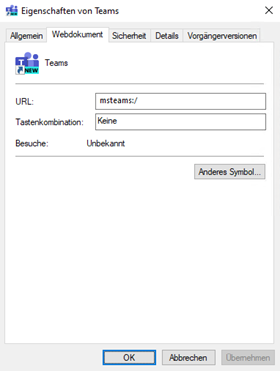
New Teams shortcut in the Windows Start menu
You can remove the shortcut from the Start menu by editing the MSIX package. All you need to do is add AppListEntry=“none“ to the manifest file. You can edit the team's MSIX package using the MSIX Packing Tool, but you must sign it with your own certificate when saving the file.
Teams shortcut not in the Windows Start menu
The Teams shortcut may not appear in the Start menu. This is a bug and can be fixed by adding the following exclusionAppData\Local\Packages\Microsoft.Windows.StartMenuExperienceHost_cw5n1h2txyewy\TempState
Switching from Teams Classic to the new Teams
On the server, simply uninstall Teams Classic and then use a script to install the new version of Teams. The issue, however, is the user profiles, which still contain remnants of Teams Classic. This can lead to various problems and should therefore be resolved immediately upon login. To do this, run the following PowerShell commands:
Remove-Item -Path "HKCU:Software\Classes\ms-teams" -Recurse -ForceRemove-Item -Path "HKCU:Software\Classes\msteams" -Recurse -ForceRemove-Item -Path "HKCU:Software\Classes\CLSID\{00425F68-FFC1-445F-8EDF-EF78B84BA1C7}" -Recurse -ForceRemove-Item -Path "HKCU:Software\Classes\CLSID\{d1b22d3d-8585-53a6-acb3-0e803c7e8d2a}" -Recurse -ForceRemove-Item -Path "HKCU:Software\Classes\TeamsURL" -Recurse -ForceRemove-Item -Path "HKCU:Software\Classes\WOW6432Node\CLSID\{00425F68-FFC1-445F-8EDF-EF78B84BA1C7}" -Recurse -ForceRemove-Item -Path "HKCU:Software\Classes\WOW6432Node\CLSID\{409667f8-3eb8-4181-1c94-941bd33cdfad}" -Recurse -Force
Remove-Item -Path "$env:USERPROFILE\AppData\Roaming\Microsoft\Teams" -Recurse -ForceRemove-Item -Path "$env:USERPROFILE\AppData\Local\Microsoft\TeamsMeetingAddin" -Recurse -Force
Full script on GitHub
For Windows Server 2022, Windows 10, and Windows 11 Multi-user
https://github.com/Koetzing/Powershell-Scripts/blob/main/install-new-teams.ps1
For Windows Server 2019
https://github.com/Koetzing/Powershell-Scripts/blob/main/install-new-teams-srv2019.ps1
 German
  English
World-class! Thank you so much.
Hi Thomas,
I haven't had that experience yet, so I can't really comment on it.
Thank you very much.
If you need to update an existing installation of newMSTeams, uninstall the old version before installing the OutlookMeetingAdd-in. (Line 135)
if ($oldversion){
$oldpackage = ($oldversion.FastPackageReference).ToString()
Start-Process -NoNewWindow -FilePath „msiexec.exe“ -ArgumentList „/X $oldpackage /qn /norestart“ -Wait -ea 0
start-sleep -Seconds 10 -ErrorAction SilentlyContinue
}
Hi,
Thanks for letting me know!
Thanks for the script.
Error code: „0x80030002“
Shutdown type: „Restart“
Note: „Windows Installer has restarted the system to continue or complete the configuration of the „Microsoft Teams Meeting Add-in for Microsoft Office“.“
Sorry, I haven't had that problem yet.
Hi,
Pascal
Hello Mr. Kötzing,
The script checks whether .NET 4.8 is installed and whether a restart is pending. This is checked using if statements, which results in duplicate entries—some with .NET, some without, some requiring a restart, and some not…
>Also, I can't see the registry values for Outlook in the script…
As described in the script header: „You must set registry keys for each user to load the Outlook add-in via GPO, WEM, etc.“
Since these are registry values specific to each user, they cannot be set via the script; instead, they must be configured using GPO, WEM, etc., as described. The necessary keys can be found in this article.
Hi Thomas,
It sounds to me like Teams isn't installed at all. Have you checked the list of installed apps or the AppX folder? If Teams isn't registered properly, the link won't work either. If there’s no Teams link in the Start menu, then Teams is most likely not installed. But for me, that’s like looking into a crystal ball without having seen the system myself.
There is a known bug related to this, so as a workaround, exclude the following path:
AppData\Local\Packages\Microsoft.Windows.StartMenuExperienceHost_cw5n1h2txyewy\TempState
Hi Thomas,
Thank you very much for the detailed explanation and the script.
I have a Citrix environment (session-based) running Windows Server 2019 and FSLogix version 2.9.8228.50276. The new version of Teams was installed on a terminal server, and we are currently in the testing phase. The problem I’m having now is that Teams V2 works for two users in the testing phase, but not for three others!
At first, I thought it was due to the FSLogix version. So I tested the users for whom Teams wouldn't launch without FSLogix (by adding them to the Exclude group). Teams didn't launch automatically, but it was possible to run it manually.
It now looks like FSLogix needs to be updated. My question for you is: Why does it work for two users in the same environment, but not for the other three?
Thank you in advance.
Best regards
I just ran into the same issue with a client, and the latest version of FSLogix (2.9.8884.27471) resolved the problem. By the way, I also posted about it on X, LinkedIn, and Facebook.
Why is that? Ask Microsoft!
1. Unfortunately, you have to log in again every day, even with FSLogix 2210 Hotfix 4.
2. Teams closes without warning. Although the Teams icon appears in the taskbar, it disappears as soon as you click on it.
3. On some days, Teams won't start at all.
Sorry, I haven't had any problems like that with my clients so far.
Hello {u-47, Thomas Kötzing},
At our client's site, which uses RDSH terminal servers running Windows Server 2019, all users have to log in to Teams NEW every day, as Rainer described. If you or anyone else here has any idea what might be causing this, I'd appreciate any tips on how to fix it. 😊
Hello, is there a solution for closing Teams? We're having the same problem.
Hi everyone,
We are currently experiencing major issues with Teams New on our terminal servers running Windows 2022.
We're also having issues with the TeamsAddin. Although it's installed, we can't activate it in Outlook. After manually activating it, the add-in deactivates itself automatically.
We use Outlook 2021 LTSC on our servers.
The Outlook add-in should be forced to load using the registry keys listed here. Simply assign these to users via GPO.
Just a quick note: When creating the script, I used a clean Server 2022 installation and created a snapshot of it. I then used that image to install Teams at least 50–80 times via the script and successfully tested it.
I can’t account for any additional software that may have been installed, nor can I account for every new version of Teams that Microsoft has released since then. It may also depend on the profile solution used, such as FSLogix, and how it was configured.
First, I had to reset the permissions:
(Admin CMD)
icacls „\\?\C:\Program Files\WindowsApps\MSTeams_24335.208.3315.1951_x64__8wekyb3d8bbwe“ /grant Users:(RX) /t /c /q
icacls „\\?\C:\Program Files\WindowsApps\MSTeams_24335.208.3315.1951_x64__8wekyb3d8bbwe“ /grant Users:(OI)(CI)(IO)(GR,GE) /t /c /q
icacls „\\?\C:\Program Files\WindowsApps\MSTeams_24335.208.3315.1951_x64__8wekyb3d8bbwe“ /grant Administrators:(M) /t /c /q
That's interesting, but the script doesn't change any permissions and hasn't been necessary so far. Also, the script runs with administrative privileges.
Unfortunately, I'm getting the following error when deploying the MSIX :/
AppxManifest.xml(1016,10): Error 0x80070032: The package „MSTeams_24335.208.3315.1951_x64__8wekyb3d8bbwe“ cannot be registered due to the following error while registering the „windows.shareTarget“ extension:
This feature is not supported.
. Please try again, and contact the package publisher if the problem persists.
NOTE: For more information, search the event log for [ActivityId] 664edcdc-7258-0002-6b66-4f665872db01, or use the command line Get-AppxLog -ActivityID
664edcdc-7258-0002-6b66-4f665872db01
Line: 1 Character: 1
+ Add-AppPackage -Path .\MSTeams-x64.msix
+ ~~~~~~~~~~~~~~~~~~~~~~~~~~~~~~~~~~~~~~~
+ CategoryInfo : WriteError: (D:\script\MSTeams-x64.msix:String) [Add-AppxPackage], IOException
+ FullyQualifiedErrorId: DeploymentError, Microsoft.Windows.Appx.PackageManager.Commands.AddAppxPackageCommand
Just Google „HRESULT: 0x80073CF6“—there are tons of results, and it has to do with the registration of the AppX package. There seems to be a fundamental issue with the system here. I’d recommend checking the event log for the AppX deployment.
𝟭𝟱𝟲𝟬𝟲 The bug seems to have been fixed since yesterday: https://statics.teams.cdn.office.net/production-windows-x64/25007.607.3371.8436/MSTeams-x64.msix
Great script for the installation. Is there also a way to uninstall Teams for all users on a terminal server? I have a Server 2019 at a client's site, and since all users have been switched to fat clients for softphones, Teams needs to be removed from the server.
The package deployment process is blocked by a policy. Contact your system administrator.
Basically, the script was tested on an empty server running RDS/Citrix. So there’s nothing else on the server—no applications, antivirus software, etc.—and so far, the script has worked for me.
If it doesn't work for someone, it may be due to additional software or specific settings, such as security settings.
Suggestion: Perform error analysis or test on a clean server. Also, there is no „update“ for MSIX packages like Teams New!
Just typing your error into Google brings up:
Description: ERROR_DEPLOYMENT_BLOCKED_BY_POLICY
Reason: The package deployment operation is blocked by a policy. Contact your system administrator.
Possible causes:
– Package deployment is blocked by application control policies.
– Package deployment is blocked by the “Allow deployment operations in special profiles” policy.
Hello {u-47, Thomas Kötzing},
Hi Thomas,
Hello,
Hi Markus,
I just haven't tested it on Windows 11 in non-persistent single-session mode. But I can't think of any reason why it wouldn't work.
Thomas
Yes, version 2.2 of the v2 script can also be used for updates. MSIX packages are not uninstalled, but the Outlook add-in must be uninstalled first, which the script does.
Hello everyone,
To do this, the entry under „HKCU\Software\IM Providers“ must match. DefaultIMApp REG_SZ = MSTeams
Hi Thomas, yes, that's our standard practice.