

CCitrix HDX is critical to the user experience in Virtual Apps and Desktops environments. This article highlights three areas where default settings and misconceptions can impact performance and complicate administration: Enlightened Data Transport (EDT), outdated legacy graphics policies, and the often misconfigured HDX 3D Pro acceleration. The goal is to provide actionable insights for proactive HDX optimization.
The EDT Dilemma – Re-evaluating UDP as a Standard
Understanding Enlightened Data Transport (EDT)
EDT is a proprietary Citrix transport protocol built on UDP that was designed to improve the user experience over „demanding long-distance connections“ and „unreliable networks.“ The Adaptive Transport mechanism used by EDT is set to „Preferred“ by default in Citrix policies, making EDT the primary protocol with automatic fallback to TCP.
The arguments for disabling it by default in LAN/WAN
In typical enterprise LAN or WAN environments with latencies below 100 ms, enabling EDT by default often results in performance degradation, which manifests as „black screens“ or „fragmented screen displays.“ These issues are often due to Maximum Transmission Unit (MTU) fragmentation, as UDP does not inherently handle fragmentation. This is particularly common with VPN connections, Wi-Fi access points, and mobile networks, where the effective MTU may be lower than the standard 1,500 bytes. EDT is „much more sensitive“ to MTU issues than the classic ICA protocol over TCP.
Although EDT MTU Discovery is enabled by default and is designed to automatically determine the optimal MTU, it has limitations. It requires that Session Reliability be enabled and may fail in scenarios with asymmetric network paths or DS-Lite networks. A failed MTU Discovery can result in an overly high detected MTU, causing fragmentation and poor performance. The TCP fallback mechanism can also increase the session startup time by up to five seconds. The default „Preferred“ setting for Adaptive Transport is problematic for most corporate networks, since the EDT implementation is sensitive to MTU issues.

Table: Comparison of HDX Adaptive Transport (EDT vs. TCP) Performance in Common Network Scenarios
| Network scenario | Default EDT behavior | Observed performance issues (EDT) | Main cause (EDT issues) | Recommended protocol for the scenario |
| Typical corporate LAN/WAN (<100 ms) | Preferred, Active | Black screens, fragmented display | MTU fragmentation, UDP sensitivity | TCP |
| VPN connection | Preferred, Active | Black screens, fragmented display | MTU fragmentation, lower effective MTU | TCP |
| Long-distance WAN (>100 ms) | Preferred, Active | Ideal, but MTU issues are possible | MTU Discovery Restrictions | EDT |
| Unreliable Wi-Fi/cellular network | Preferred, Active | Black screens, fragmented display | MTU fragmentation, unstable connection | TCP |
| Connection via Citrix Gateway | TCP (often enforced) | No EDT issues (since UDP ports are often closed) | UDP ports not open/EDT not enabled on the gateway | TCP (often forced) |
The standard for HDX connections and error detection
I often hear from customers that connections via the No issues with Citrix Gateway show, and this is because either EDT is not enabled on the gateway, or the UDP ports 1494/2598 (inbound) and 443 (outbound) for Citrix Gateway have not been opened, meaning that only TCP connections come about.
Other indicators of UDP issues may include the previously mentioned „black screens“ or the „fragmented screen display“ be. If you are unsure which transport protocol is being used, you can check this via Citrix Director or using the command CtxSession.exe -v check.
Given that most customers do not use transatlantic connections, the default setting for HDX Adaptive Transport should be reevaluated. I recommend that Citrix set to „Off“ by default.
Citrix Legacy Graphics Policies
The Purpose and Pitfalls of Legacy Graphics Mode
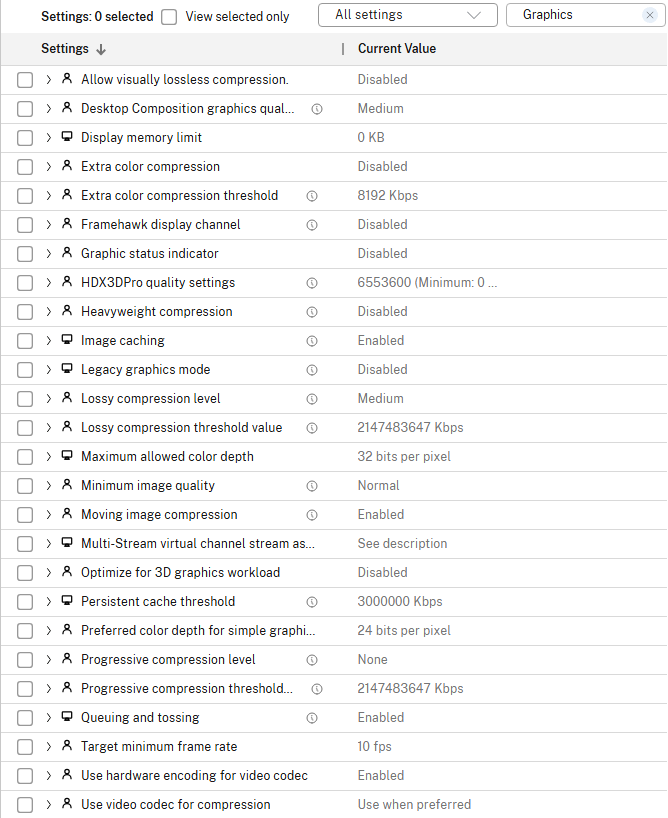
The legacy graphics mode was designed for older operating systems such as Windows 7 and Windows 2008 R2. However, it is not supported or tested on modern operating systems (Windows 8, 8.1, 10, Server 2012/2012 R2/2016). The long-term presence The presence of numerous settings that are explicitly tied to „legacy graphics mode“ (e.g., Extra color compression, Heavyweight compression, Lossy compression level, Progressive compression) causes considerable confusion among administrators. Although legacy graphics mode itself is used by administrators is not enabled, they often configure many of the policies that depend on it because these„listen carefully“, without realizing they are incompatible. Although a „Legacy settings only“ filter is available in Web Studio, on-premise administrators currently make little use of this tool, which makes it difficult to identify and prevent these misconfigurations. This confusion has been an ongoing issue for many years. In a conversation with the then-HDX product manager Derek Thorslund I have expressed the need for a filter to manage these policies, but a comprehensive solution has never been fully implemented.
Overview of Legacy Graphic Guidelines
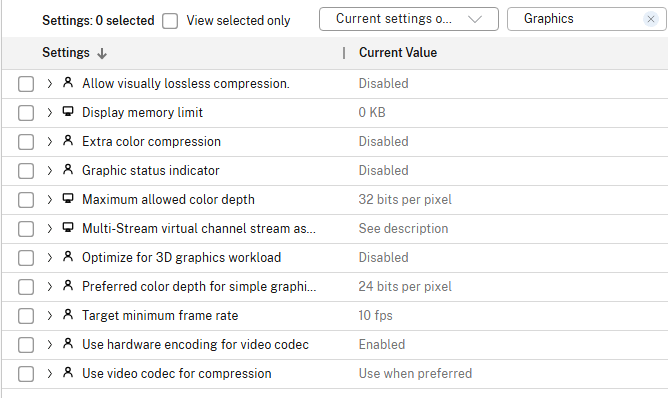
The following images list policies that are either explicitly tied to „Legacy Graphics Mode“ or were primarily relevant to older graphics rendering methods. Modern Citrix environments predominantly use Thinwire, which adapts dynamically and utilizes video codecs (H.264, H.265, AV1), rendering many of these legacy settings obsolete or ineffective.
| Including legacy graphic guidelines | Current Graphic Guidelines | |
 |
 |
Citrix should speed up the cleanup of the Policy Console, by removing legacy policies and will no longer provide warnings or filters for legacy policies.
Optimize HDX 3D Pro – Enable GPU Acceleration
Basics of HDX 3D Pro and GPU Usage
HDX 3D Pro, now known as HDX Graphics, delivers a high-performance user experience for demanding graphics workloads by leveraging GPUs to hardware-accelerate DirectX and OpenGL applications. It uses adaptive H.264 or H.265-based depth compression for optimal WAN and wireless performance. Hardware encoding with H.264 and H.265 is supported on NVIDIA, Intel, and AMD cards that support NVENC.28 H.265 and AV1 offer superior compression and image quality. Proper installation of GPU drivers and hypervisor configuration are critical for the effective use of vGPUs.
Key Guidelines for Optimal HDX 3D Pro Performance
Optimizing HDX 3D Pro requires precise configuration of Citrix policies:
- Use a video codec for compression: For intensive 3D graphics, „For the entire screen“Recommended for configuring Thinwire with full-screen H.264, H.265, or AV1.”.
- Use hardware encoding for the video codec: Enabled by default, this setting allows the use of GPU hardware acceleration to compress on-screen elements, which significantly improves the frame rate.
- Visual quality and Allow visually lossless compression: These guidelines are essential for achieving pixel-perfect or visually lossless graphics.
- Optimize for 3D graphics workloads: Although listed as „obsolete“ in version 2411, it is still mentioned in other documents, which can lead to confusion.
HDX 3D Pro „automatically uses all available bandwidth,“ which can negatively impact performance when there are significant fluctuations.
The Indispensable Role of the Remote Display Analyzer (RDA)
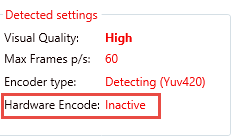
The main problem, however, is that even with the Citrix policy „“Use hardware encoding for video codecs" But in reality, under certain conditions, the hardware isn't even active! In other words, customers are spending a lot of money on expensive graphics cards, but they aren't using them at all! Citrix recently introduced a feature in Director that shows Teams is HDX-optimized, but there is no way for the administrator to see whether and how the vGPU is being used in the session, And that's exactly where the Remote Display Analyzer comes in handy! The HDX display in Director, in particular, is already several years old and is in desperate need of an update!
The Remote Display Analyzer (RDA) is a „The perfect tool“ for validating and troubleshooting HDX 3D Pro configurations. RDA offers automatic detection of display mode and encoder, real-time statistics on CPU time, bandwidth, and latency, as well as the ability to change settings on the fly. It also detects the EDT MTU size and checks NVIDIA licensing and hardware encoding usage. RDA’s ability to change settings on the fly fills a critical gap in existing Citrix monitoring tools. Citrix should acquire this tool and integrate it into its product to provide a comprehensive solution for HDX graphics optimization.
It is important to note the simple yet clear indication of whether hardware acceleration is enabled or not, because even if the „Use hardware encoding for video codec“ policy is enabled, that does not automatically mean that hardware acceleration is actually active!
Conclusions and Recommendations
Optimizing Citrix HDX environments requires a deep understanding of protocols and policies. This article highlights three key areas where current default settings and policy practices can lead to challenges:
- EDT as the standard transport protocol: Enabling EDT by default is counterproductive in most LAN/WAN environments due to MTU fragmentation issues and EDT's sensitivity to network elements. Assess whether EDT is suitable for your network segments! Set HDX Adaptive Transport to „Off“.
- Legacy Graphic Guidelines: The continued presence of outdated policies that are not supported by modern operating systems causes significant confusion and leads to misconfigurations. Disable or remove all legacy graphics policies from deployments running modern operating systems. Citrix should speed up the process of phasing out outdated legacy graphics policies!
- HDX 3D Pro Optimization: Proper use of HDX 3D Pro requires precise policy configuration and careful GPU setup, and inconsistencies in the documentation make this even more challenging. Citrix should consider integrating advanced real-time monitoring and configuration validation features, similar to those of the Remote Display Analyzer, directly into Citrix Director.
Finally, I would like to take this opportunity to thank the team at Remote Display Analyzer Thank you for my NFR version!
 German
  English