

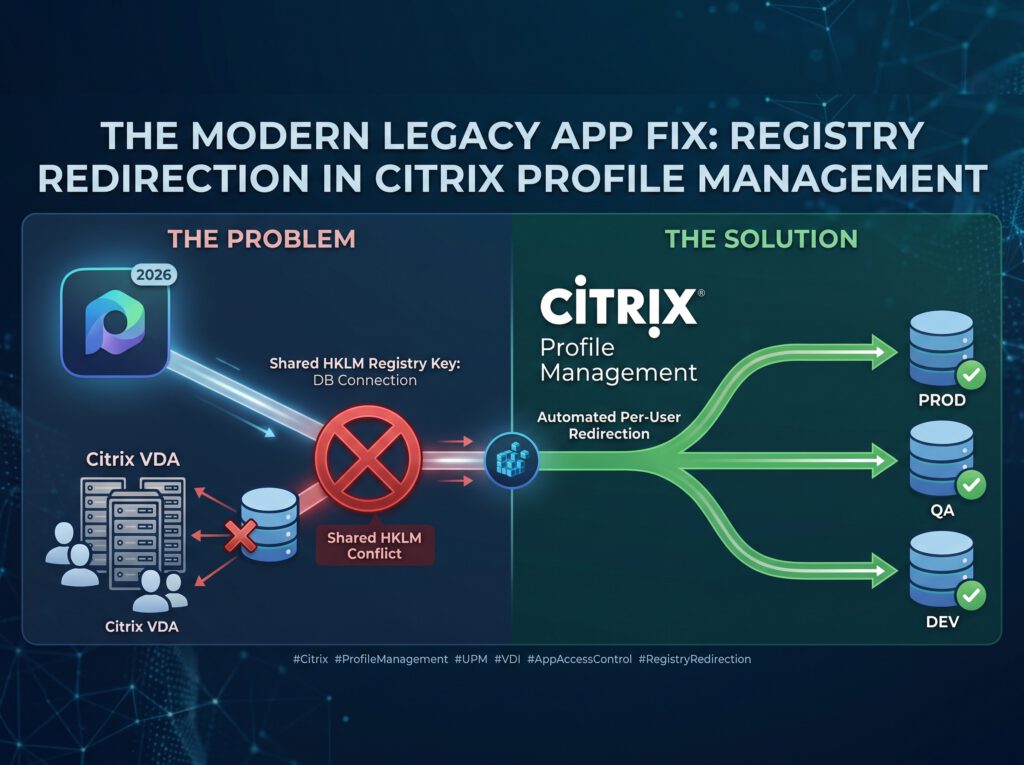
This is not a legacy application; it's a modern one.
If an application on a multi-session host does not behave as expected, we call it „Legacy“ and carry on. This word does a lot of work that it doesn't deserve.”.
The application in this project is current. It is actively being developed, actively being sold, and receives regular releases. And it stores its entire configuration—most notably the database connection—in HKEY_LOCAL_MACHINE. Not per user. Not per session. Once per machine.
On a Citrix VDA, this means that every user accesses the same database. For a business unit that needs to run production, QA, and development in parallel, this is a deal-breaker. Until now, the customer had App-V It was in use, but it had been discontinued, so we needed a replacement. My instinctive reaction: Citrix App Layering – The decision has already been made, with three exclamation points.
First, ask what really hurts
Before I talk about technology, I sit down with the relevant department—not with IT. The question is always the same: What exactly isn't working?
The answer was precise. No isolation. No DLL conflicts. No parallel runtimes. Just a handful of registry values under HKLM that cannot be set on a per-user basis. And, as it turned out, the application can be launched multiple times under different EXE names.
This isn't an application virtualization problem. It's a redirection problem—and App Layering isn't the right solution for it.
The Solution: Citrix Profile Management App Access Control
Most people know App Access Control as „Hide Applications on the Golden Image“—Citrix’s answer to FSLogix App Masking. Less well known is the second half: redirect rules for files, folders, registry keys, and values, assigned per user, machine, or process.
Here's how the redirection from HKLM to HKCU works:
- The Rule Generator for App Access Control You can find it in the Citrix Environment Tool Hub. There's also a PowerShell method—you've just heard about it, and you can forget it right away.
- Launch Rule Generator → Create rule → Redirect → Registry Key.
- Select or enter the key to be redirected:
HKLM\Software\MyApp\DB
→HKCU\Software\MyApp\DB_Prod
→HKCU\Software\MyApp\DB_QA
→HKCU\Software\MyApp\DB_DEV. - Assign processes:
MyApp_Prod.exe,MyApp_QA.exe,MyApp_DEV.exe. - The Citrix Policy App access control Edit, insert the raw data, enable it, and save it.
- Distribute the actual HKCU values per user via Group Policy settings.
Done. Supports multiple users—no packaging, no sequencer, no additional layer.
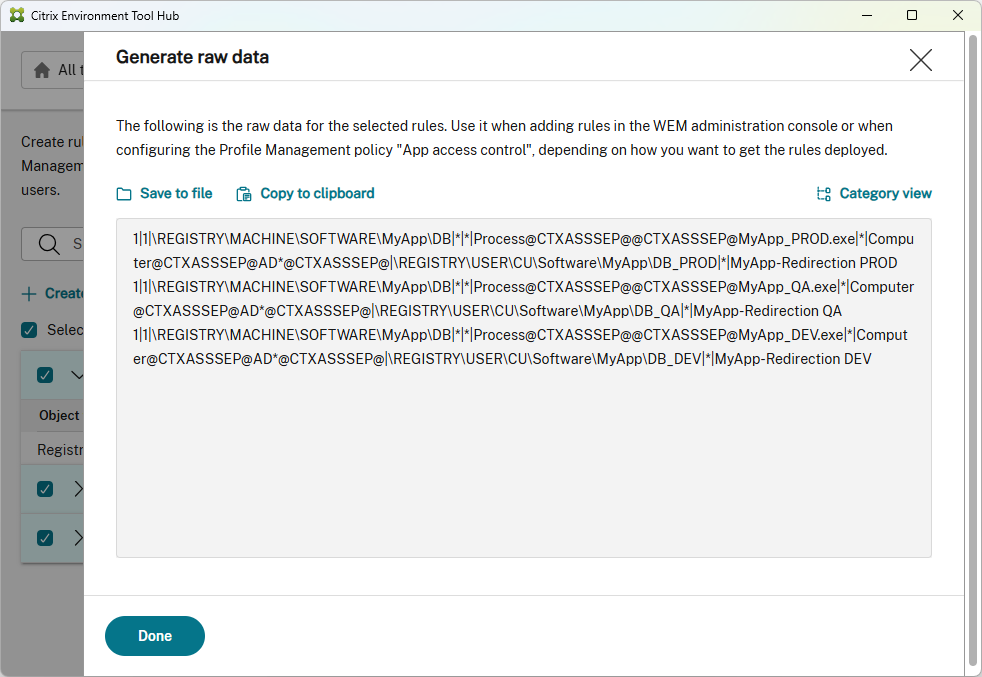
Since the customer operates multiple database instances, we took it a step further: The same application was published multiple times, and the redirect rule points to a different destination for each process. One installation, multiple rule sets, no second image.
Better than FSLogix App Masking
FSLogix policy files are stored on each server or in the master image; any change requires deployment or a rebuild.
The Citrix rule set is located centrally in the policy—customize it, copy the raw data, and paste it. And on top of that, the Rule Generator can import existing FSLogix rule sets.
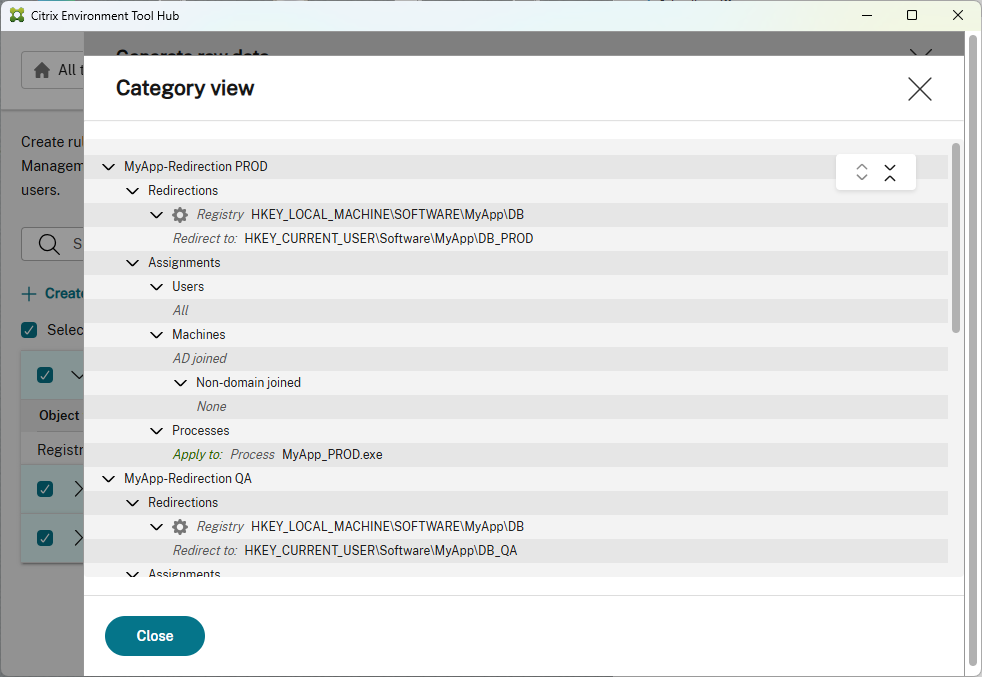
This tool is simply better—it has a clean category view and provides much more detail about what you're actually doing.
Conclusion
A project that seemed like it would involve application virtualization ended up amounting to just a few redirect rules in a policy.
How often do you use infrastructure to fix a manufacturer’s design decisions—and do you ever report that back to them?

 German
  English