

IFor a customer project, the ViewSonic Raspberry Pi 3 thin client was procured for evaluation. Why is this interesting? Citrix had promised to release a thin client costing less than $100. This was intended to put an end to the debate over whether to use fat or thin clients, since today’s thin clients cost just as much—or even more—than fat clients. However, the lifespan of thin clients is often overlooked in this context, and this is because the purchasing department naturally only ever sees the initial acquisition costs. I have clients who are using 10-year-old thin clients, whereas the existing fat clients have already been replaced for the third time—and who knows how many of those still had to be repaired.
The ViewSonic thin client is based on Raspberry Pi and has an official price $119 dollars. Not quite $100 dollars, but close—though my customer paid 89 euros for it. Note that the device is shipped without a mouse and keyboard, but these can be purchased separately for $49—almost half the total cost, which would have pushed the total well over $100.
I took a look at the client and its management in Citrix XenDesktop 7.9. Here is my review of the ViewSonic Raspberry Pi 3 thin client.
Let's start with the specifications
ViewSonic SC-T25 Raspberry Pi 3 Thin Client
- Raspberry Pi Platform
- Citrix HDX Ready
- The digital HDMI output supports displays with resolutions up to 1920 x 1200 dpi
- With Wi-Fi, Bluetooth, and RJ45
- Four USB 2.0 ports
- 4W power consumption
- Quad-core ARM Cortex CPU
- ViewSonic Thin OS (VTOS) ARM Linux OS
- 1 GB of RAM
- Audio Output
- 300 grams
- 60 seconds from launch to the surface of the TC
I just quickly hooked everything up, and now the little black thin client looks a bit out of place. Can you spot it? To be fair, it was the only USB keyboard and mouse I had on hand at the time.
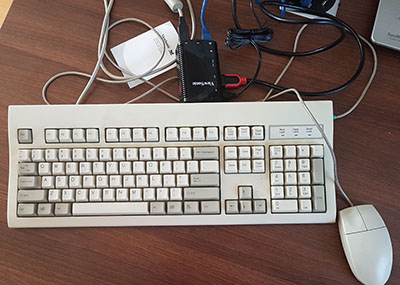
The initial startup took 120 seconds, and then a good 60 seconds. The default setting is to launch the local browser and open the ViewSonic website, but what about a Citrix session?
The long story behind setting up a Citrix session
The title says it all, doesn't it? After closing the web session, a configuration bar appears, and here I can select Citrix HDX and then click „New“ to launch Citrix Receiver, which will then ask for a URL or email address. In fact, both options have their issues, and only one of them works, so choose wisely 😉
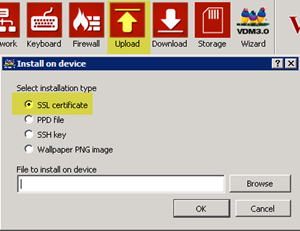
The user manual states that the use of an email address is not supported. I think they wanted to use the URL anyway, BUT that’s a receiver-specific issue, as you’re surely aware. Yes, by default, the receiver only uses HTTPS (SSL) connections and the device runs Linux. This means the Raspberry Pi needs the root certificate (internally, a public certificate is used for StoreFront only in extremely rare cases), but how do I get the certificate onto the thin client? The answer is to use the ViewSonic Device Manager (VDM)
ViewSonic Device Manager (VDM)
VDM is a free download and a Windows application that needs to be installed. When you launch it for the first time, the Device Manager Wizard starts up and performs standard tasks, such as downloading the latest firmware. At one point, it asks for a license with an email address and password? No idea what that’s for, and nothing about it in the user manual? So I just entered something random, and it works?
Next, I noticed that the device is already listed. Since I didn’t do anything else, I assume the client uses broadcasts by default. You can and should set the VDM on the TC, and then a TCP port will be used. There isn’t really much to say about the VDM since it offers only very basic features. I wouldn’t even call it VDM 3.0—more like a pre-beta!
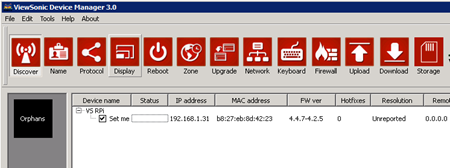
The only thing you need is the „Upload“ feature to transfer the root certificate to the device. But before that, there's one more small hurdle to clear. The The root certificate must be in PEM format If it was created in Windows, it needs to be converted accordingly. With the root certificate in the correct format, the upload is quick and everything is ready for the receiver.
Citrix Receiver on the Raspberry Pi
Finally, the StoreFront URL can be entered manually, but I couldn't find anything about it in the VDM. The application set is displayed, and Citrix sessions can be launched. Finished working? Well, you can log out of the Receiver, but it still displays the applications, and there’s no „Off“ button—not even on the device or anywhere on the screen. I suppose ViewSonic thinks the 4W device will just be left on or the power cord pulled out? Mirroring the thin client via VDM? No. I’m repeating myself—the VDM is very, very simple.
Summary
Are you looking for a affordable thin client and expect nothing more than a working ICA connection? That’s exactly what you get—no more, no less. ViewSonic isn’t a household name in the thin client business, at least not to me. That might be why the whole thing doesn’t look like much. The ViewSonic has potential—but only in the distant, distant future. It’s very likely that a well-known manufacturer will offer an affordable Raspberry Pi-based thin client that can also handle environments with more than 10–20 users is usable.
What do you think? Is it just about the price, and are other factors—like administration—not really important?
Please leave a comment below!
 German
  English