


DThis is a three-part article about web browsers in a Multi-user system such as Citrix Server VDA or Remote Desktop Services (RDS). This article explains how to deploy and configure web browsers so that they function as smoothly as possible in these environments. The most common browsers I encounter at client sites are Microsoft Internet Explorer, Google Chrome and Mozilla Firefox and so this is a three-part article.
Please keep in mind that things may vary between browser versions, so you should test with each version.
This is the Part 1 via Microsoft Internet Explorer, and in my opinion, it is used as the primary browser in most companies, if not the only supported web browser.
Note
This article is about deploying and configuring web browsers in multi-user environments, not about whether the browser is the best, fastest, coolest, or whatever.
About Internet Explorer
Microsoft Internet Explorer is a core component of the Windows operating system (OS) and therefore cannot be uninstalled. When it’s time to upgrade to the next version of Windows, keep in mind that this will include a new version of Internet Explorer that cannot be downgraded. This is important to know for compatibility reasons. From experience, I can say that Microsoft has done a lot to ensure that the latest IE versions have higher compatibility, and this can also be configured via Group Policy. Microsoft Edge is another browser from Microsoft, but its focus is different from that of Internet Explorer. For administrative tasks, Internet Explorer is still the top choice, while for personal use, Microsoft Edge might be a better option.
Deployment
One major advantage of Internet Explorer is its deployment—there is none, and any necessary upgrades are handled through the Windows Update service. Don’t think that only Microsoft IE has security issues or bugs; all browsers do, but as usual, Microsoft Internet Explorer seems to be a favorite target of hackers.
Configuration
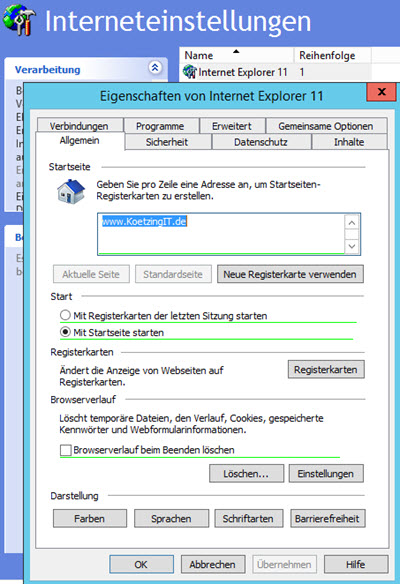
Another advantage, in my opinion, is configuration via Microsoft Group Policy. However, do not use Internet Explorer Maintenance, even with older versions of IE, as this has caused some problems in the past. With Internet Explorer 10, Windows settings should be used in conjunction with the standard administrative IE settings. However, make sure that the same settings are not applied in both areas. Ensure that the correct syntax These settings will be used for the proxy settings; otherwise, they will be ignored.
Here is a a few important Group Policy settings that should be configured:
- Clear the Temporary Internet Files folder when closing the browser
- Use software rendering instead of GPU rendering
- Enhanced Protected Mode is enabled -> disable it (YouTube issue)
- Disable unnecessary add-ons (Office, etc.)
- Do not set the increase in register-based processes with IE > 9
- Redirecting the download directory (from the user profile)
- Disable InPrivate Browsing (may cause profile issues)
- Optional setting of zone assignment (Intranet, Trusted)
- Optionally set the compatibility for web applications
- Optional: Redirect favorites (Note: This may slow down the login process if redirected)
- Optional cookie redirection (may slow down the login process if not enabled)
Summary
I think Internet Explorer is the top choice for businesses because of its straightforward deployment and excellent control via Group Policy. When Internet Explorer is properly configured, its performance is perfectly acceptable. People often forget that loading a ton of add-ons slows down IE and significantly increases RAM usage. I also believe that many people hear or read more about IE’s security issues, but that doesn’t mean other browsers don’t have them too. Are you looking for a browser that’s fast, simple, yet still controllable? Then Microsoft Internet Explorer is exactly right for you.

Hello,
I have three questions:
1. „•Enable or disable Enhanced Protected Mode“: What does that mean? Enable or disable?
2. Redirecting cookies: That’s something Citrix Profile Management handles well, right?
3. Delete temporary files on exit: Many people (including us) delete the profile when logging out, and Citrix PM doesn't back them up. So that option doesn't make sense for us, does it?
1. I changed the setting… the default value is set to "Active" and needs to be turned off.
2. No, redirection with UPM doesn't work at all. The Citrix policies for this have nothing to do with UPM. I tested it once and it was useless back then—and MS Folder Redirection has been around for ages for this purpose… except for cookies.
3. With UPM (if configured correctly), writing the data back shouldn't be a problem, but issues may still arise when deleting the profile from the server—something that can be prevented if Internet Explorer clears the cache immediately!