


DThis is a three-part article about web browsers in a Multi-user system such as Citrix Server VDA or Remote Desktop Services (RDS). This article explains how to deploy and configure web browsers so that they function as smoothly as possible in these environments. The most common browsers I encounter at client sites are Microsoft Internet Explorer, Google Chrome and Mozilla Firefox and so this is a three-part article.
Please keep in mind that things may vary between browser versions, so you should test with each version.
This is the Part Three About Mozilla Firefox.
Note
This article is about deploying and configuring web browsers in multi-user environments, not about whether the browser is the best, fastest, coolest, or whatever.
About Mozilla Firefox
Mozilla is available in a special edition of the Extended Support Release (ESR) and is based on the same concept as Citrix Long-Term Service Release (LTSR). ESR should therefore be more thoroughly tested and thus offer greater stability. That is why I used the ESR version for this article. Some of my clients use Firefox because they have developed their own applications for it, but as is often the case, the developer is no longer available. Mozilla Firefox does not support Microsoft Group Policy except in an unsupported Community Edition, and is therefore not reliable enough for enterprises in production environments. Firefox, like Google Chrome, stores user data in the user profile’s AppData folder and can thus grow significantly, ...which can significantly slow down the login process.
Deployment
The installation package comes as an executable file with only two options. Use of -ms for unattended installation and /INI for unattended operation but with additional parameters. The main reason for using the INI version is the ability to disable the maintenance service.
The command line for installing Firefox:Start "Install Firefox" /wait "%CURRPATH%\Firefox Setup 45.6.0esr.exe" /INI="%CURRPATH%\ff_install.ini"
INI file contents[Install]InstallDirectoryName=Mozilla FirefoxQuickLaunchShortcut=falseDesktopShortcut=trueStartMenuShortcuts=falseMaintenanceService=false
Configuration
Firefox is configured using configuration files, which must first be modified and copied to the correct location. The files in question are autoconfig.js, mozilla.cfg, overwrite.ini and profiles.ini. The autoconfig file essentially just points to the mozilla.cfg file, although the name of the file can be chosen freely in autoconfig.js
Contents of the autoconfig.js filepref("general.config.filename", "mozilla.cfg");pref("general.config.obscure_value", 0);12
The mozilla.cfg This is the actual configuration file, and here are some important settings:
- // Disable GPU hardware acceleration
lockPref("layers.acceleration.disabled", true);lockPref("gfx.direct2d.disabled", true) - // Disable default browser check
lockPref("browser.shell.checkDefaultBrowser", false); - // Disable Updater
lockPref("app.update.enabled", false); - // Ensures that the update is actually turned off
lockPref("app.update.auto", false);lockPref("app.update.mode", 0);lockPref("app.update.service.enabled", false); - // Disable all data uploads to Mozilla (Telemetry and FHR)
lockPref("datareporting.policy.dataSubmissionEnabled", false);
When the user launches Firefox, a profile is created and saved by default in the user profile's AppData folder. I recommend redirecting the folder to a network folder, such as the home directory (Home Drive), since a separate folder is required for each user. Of course, this can lead to performance or other issues (network errors), but a decision must be made here between login time and performance. So far, customers have not reported any problems with redirecting the folder to the network.
NOTE: I recommend absolutely not Redirecting the entire AppData directory! This can lead to a number of problems!
To change the default path for Firefox, a customized profiles.ini file must be created for each user in the AppData folder. This can be done quite easily using Group Policy for INI files. In addition, the destination folder must also be created in advance using Group Policy.
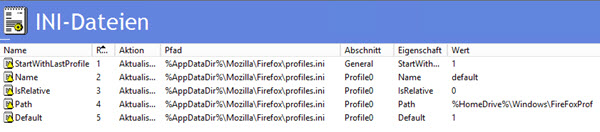
The content of the profiles.ini The file would look like this, with H: as the home drive and FireFoxProf as the new folder
[General]StartWithLastProfile=1[Profile0]Name=defaultIsRelative=0Path=H:\Windows\FireFoxProfDefault=1
Alternatively, you can launch Firefox with command-line options and specify the Firefox profile location -P And since this is done through the Windows Shell, environment variables such as %UserName% can be specified, and non-existent folders are created automatically.
To disable the Import Wizard, you will need the overwrite.ini file, which must be copied to the Firefox program directory.
Contents of the overwrite.ini File[XRE]EnableProfileMigrator=false
Then you're finally done!
Deployment Package
All the files needed for Mozilla Firefox deployment are available for download here in a single package

Summary
Of the three web browsers, Mozilla Firefox requires quite a bit of configuration to get it to work properly. Control over it is very limited and not very flexible compared to configuration via Group Policy. In my opinion, any software that wants to play a role in a corporate environment should support Microsoft Group Policy. In general, installation packages these days should be available as MSI files and support more options. I’m also not a fan of applications that store an unnecessary amount of data in the user’s profile—and it’s even worse when this is done under AppData\Local.

Hi Thomas,
Will you be posting an update on this topic sometime? A lot has changed with FF, after all. Thanks in advance.
Greetings