


VMany Citrix or terminal server farms have problems with printer drivers, and sometimes the administrator isn't even aware of it. Printer drivers that aren't designed for multi-user environments can have a negative impact on various aspects. Often, these „buggy“ drivers cause a slower login or a sudden spike in CPU usage. In the worst-case scenario, printer drivers can prevent the server from logging in altogether, force the print service to shut down, or cause a „Blue Screen of Death“ (BSOD, which is quite rare in Windows 2003 and later versions).
Until now, troubleshooting has often been complex and required in-depth knowledge of printer drivers. Once the driver was finally identified (often by analyzing a crash dump file) and the information was forwarded to the manufacturer, this often ended with the manufacturer stating that the problem could not be reproduced in their environment.
To identify these „bad“ printer drivers—and, even better, to simulate a terminal server scenario—Citrix released a utility called „AddPrinter.“ Later, Citrix developers created a Created a GUI for AddPrinter and aptly named it „StressPrinters“ equipped with. With StressPrinters, administrators can easily „stress“ printers, subject them to heavy loads, and thereby simulate a terminal server environment. This is very helpful for administrators, and at the same time, manufacturers can precisely reproduce an existing problem.
Citrix has already distributed the utility to all major printer manufacturers in the hope that future printer drivers will work seamlessly in terminal server environments. In the meantime, administrators of multi-user farms (Citrix, terminal servers, etc.) are advised to test all their printer drivers with StressPrinters.
Understanding Citrix StressPrinters
StressPrinters automatically creates and deletes print objects that were previously defined in the StressPrinters GUI. This creation and deletion takes place within a very short time, thereby Simulated peak times for check-in and check-out. The administrator determines the intensity with which the test should simulate the behavior. Testing printer drivers can be a very high CPU load and should therefore not be run on production servers. StressPrinters does not depend on any specific Citrix component and can therefore be used in any multi-user environment. StressPrinters even runs on a Windows XP workstation. This allows printer manufacturers and their driver developers to replicate the exact same situation and find a solution for it.
Use StressPrinters
StressPrinters is very easy to use. You can download StressPrinters from CTX109374. Registration is required, but the download is free. The ZIP file should be extracted to a folder on a non-production server where all the printer drivers used are also installed.
The Simple Printer Stress Test
After launching StressPrinters, the following window appears:
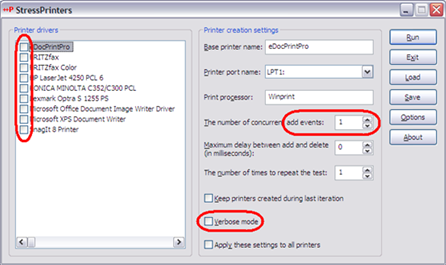
Select all printers to be tested and specify the number of times the printer should be added and removed (4–5 is recommended). Additional parameters can be set optionally, but are not required. A description of all options can be found in the article mentioned above. Click „Run,“ and StressPrinters will start testing the printer drivers. During the test, an „Output“ window will appear, displaying the test status.
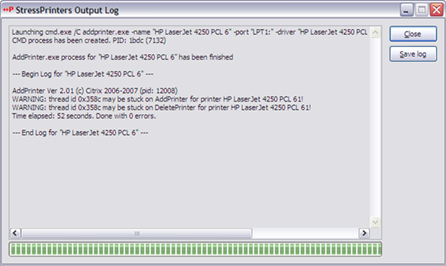
In the best-case scenario, the output window will simply display „Successful… done with 0 errors.“ A few „Warnings“ may appear, indicating that the printer driver may need more time to create or delete the printer.
However, if the printer service „freezes“ or even crashes completely during the test, this is due to faulty printer drivers. Under no circumstances should these drivers be used in a production environment. As a general rule, it is recommended to test every printer driver with StessPrinters BEFORE deploying it in a production environment. This applies in particular to drivers on print servers accessed by a terminal server or Citrix server.
The Advanced Printer Stress Test
There are reasons to perform an extended printer driver stress test. Drivers may pass the test but take an unusually long time or place an excessive load on the CPU. These parameters should be monitored during the test in order to further optimize the login and logout processes.
Example: StressPrinters Test with Native and Non-Native Drivers
The following image shows the results from StressPrinters using a native and a non-native printer driver. The HP driver is just an example here, but this could apply to any manufacturer.
Printer driver test using the following StressPrinters settings:
Number of events for creation/deletion: 1
Maximum wait time: 0 ms
Test Retake: 0
Detailed mode: active
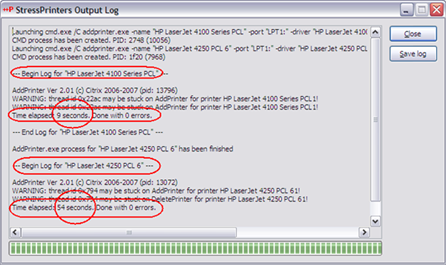
The „warnings“ aren't that important, and both drivers are generally suitable for a TS environment. What stands out, however, is the time required for the test. The native driver took 9 seconds, while the non-native driver took 54 seconds for the same test!
Here, the stress test should be monitored more closely using Microsoft Performance Monitor; monitor the „spoolsv.exe“ process.
HP LaserJet 4100 Series PCL – Native Microsoft Printer Driver
Time to create/delete a printer: 9 seconds with max. ~181% CPU usage on an Intel Core Duo
Login: 6 seconds / ~181 TP3T CPU, Logout: 3 seconds / ~111 TP3T CPU, max. context switches: 1,000
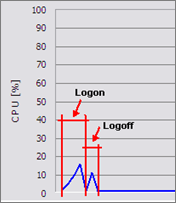
HP LaserJet 4250 PCL6 Non-Native HP Printer Driver (61.63.461.42)
Time to create/delete printer: 54 seconds with ~65.1% CPU usage on an Intel Core Duo
Login: 6 seconds / ~181 TP3T CPU, Logout: 48 seconds / ~651 TP3T CPU, max. context switches 10,000
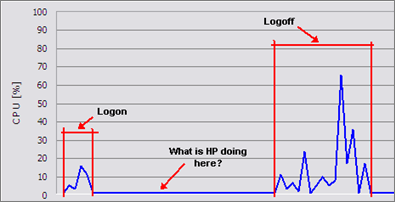
The figures above clearly show that the non-native driver uses significantly more server resources than the native driver. This high resource usage has a dramatic impact on the logon and logoff processes. Users often have between 5 and 15 printers set up. If all of these printers require a lot of resources, the logon and logoff processes can take a very long time.
Summary
Citrix StressPrinters should be used to test EVERY printer driver before it is installed on production servers (Citrix, terminal servers, print servers). During the stress test, be sure to evaluate CPU load and runtime, and look for a more suitable driver if necessary. Using StressPrinters helps minimize certain login and logout issues caused by poor-quality printer drivers. Many administrators are unaware that printer drivers can have this impact.
References
- StressPrinters for 32-bit and 64-bit Platforms
http://support.citrix.com/article/CTX109374 - HMR Trial Pack – Print Services
http://support.citrix.com/article/CTX112805 - Common Microsoft Windows and Citrix Printing Terms Defined
http://support.citrix.com/article/CTX111967 - Troubleshooting Printer Issues in Presentation Server 4.5
http://support.citrix.com/article/CTX113261 - Troubleshooting Printer Issues in Presentation Server 4.0
http://support.citrix.com/article/CTX107137


 German
  English
Pingback: The Ten Rules for Printing with Citrix - KoetzingIT – Thomas Kötzing