CBy default, Citrix XenDesktop desktop icons are the same for all delivery groups and are rather boring. Back in the days of XenApp 6.5, you could simply select the desktop icon during publication. With XenDesktop, this now has to be done via PowerShell—welcome to the future! With version 7.13, it is now get-ctxicons (Retrieves icon data from various sources) removed and makes the whole thing even harder.
The default display of desktop icons
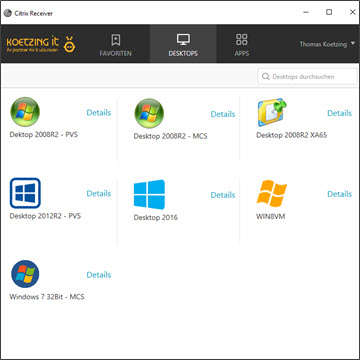
If the user has been assigned multiple desktops, they will see the following uninspiring display in the receiver

The process for getting a customized desktop icon
- Converting an image (PNG) to the ICO file format
- Convert ICO to base64
- Importing the base64 content into PowerShell
- Using PowerShell, assign the new icon to the deployment group
- For StoreFront, desktop fallback images must be disabled
More details here
- Changing Delivery Group Icons
https://www.citrix.com/blogs/2013/08/21/xd-tipster-changing-delivery-group-icons-revisited-xd7 - Changing delivery group icons with Storefront 3.0 or later in the environment
https://support.citrix.com/article/CTX216408
My little PoSh script
To simplify the process, I've created a PowerShell script. All you need is an ICO file and the name of the deployment group (not the display name). It's easy to create an ICO file from a transparent PNG file. Just click on http://convertico.com Upload the PNG file, and you’ll immediately receive the ICO file. Then launch PowerShell from XenDesktop Studio so that the Citrix cmdlets are loaded right away (next to Actions). Using the PowerShell script, the import and assignment can then be done quickly.
Using PowerShell
PoSh: New-DeliveryGroup-Icon.ps1
StoreFront
To view the icons in StoreFront, you must disable the default desktop icons in StoreFront.
PoSh: .\Program Files\Citrix\Receiver StoreFront\Scripts\ImportModules.ps1
PoSh: Disable-DSStoreSubstituteDesktopImage -SiteId 1 -VirtualPath /Citrix/Store
What the icons look like after importing the customized desktop icons
This is what it looks like for the same user with the customized desktop icons
Download
Here is the PowerShell script