IThe following second part of the series on the Citrix Cloud ADM service focuses on setting up the ADM agent. Basically, there are significant differences in the deployment and in the ADM agents used for this purpose. First, there is the Built-in ADM agents, which is already included in NetScaler 12.x, and secondly, the ADM Agent Appliance. In this setup, the ADM appliance is integrated as a standalone system—usually on-premises—and linked to the Netscaler. In the following article, I’ll explain exactly what the difference is and how these agents are used.
The Start of Deployment
Since this involves Citrix Cloud, you must first log in to Citrix Cloud using a Citrix user account and multi-factor authentication (MFA). Then, select Application Delivery Management from the available services
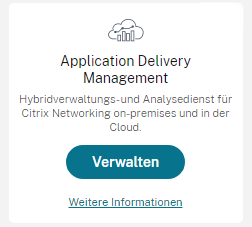
and go through the initial setup. This involves selecting the region to be used (EMEA, Americas, etc.) and the permissions, for which you simply select all options. Since no ADM agent has been set up yet, the „Get Started“ – Set Up Agent screen appears immediately.
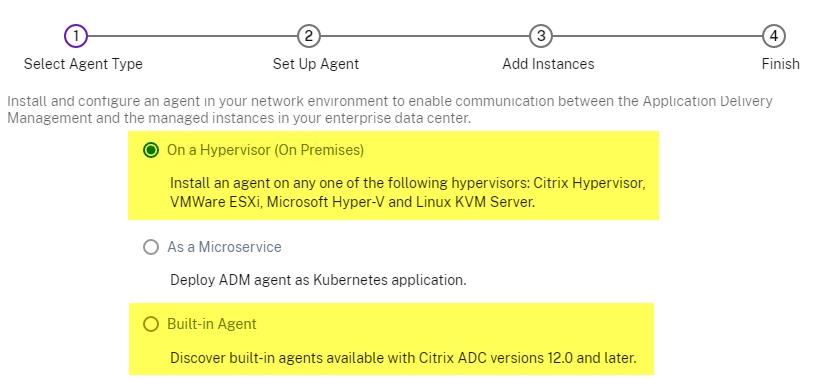
Next, you should select the following: Custom Deployment | On-premises | Traditional/Tiered and then you select the desired agent.
Differences Among Agent Types
- On a hypervisor (on-premises)
This ADM Agent appliance offers the highest level of functionality and, as a result, Reading and writing options to the Netscalers via the ADM Cloud. In addition, the ADM Agent appliance can also connect to the ADM Cloud via a proxy server. - Built-in ADM Agent
Starting with Netscaler version 12.x, the ADM Built-In Agent is available as part of the Netscaler firmware. However, this agent offers read-only options to the Netscalers and can also not via a proxy server can be used.
The question of the agent is the question of the Trust in Citrix Cloud (and thus the cloud in general). If I trust Citrix Cloud and want maximum functionality, the ADM Agent Appliance is the only option. Otherwise, I use the built-in agent and thus only receive notifications about security issues and expiring certificates. For me, only the ADM Agent Appliance makes sense, so I will discuss it further, as it covers the built-in deployment.
The ADM Agent appliance is integrated into the hypervisor and goes through the network setup after startup. After restarting the ADM Agent, you must log in to the console using nsrecover/nsroot Log in. Then the directory /mps change to that directory and run one of the following two scripts: deployment_type.py or register_agent_cloud.py
To register for the ADM Cloud, you need the Service URL and the Activation code required. Of course, I can also retrieve both of these from the Citrix ADM cloud at a later time. After successful registration, it takes at least 15 minutes for the agent to become fully operational. An important aspect of using the ADM agent is communication with the cloud, and this may require appropriate firewall rules to be enabled if no proxy is used. With that, the ADM agent is configured, and we receive data in the Citrix Cloud ADM service.
What still needs to be configured in the ADM Cloud and what data I will receive is described in Part Three Explains.
Summary
There are basically only two types of ADM agents: Read and Write Mode or read-only mode. The However, only the ADM Agent appliance offers the most functionality and this is the only place where the agent can be used via a proxy server. Configuring the agent is straightforward, as long as it can communicate with Citrix Cloud.
Notes
- ADM Cloud – Getting Started
https://docs.citrix.com/de-de/citrix-application-delivery-management-service/getting-started.html - Install an agent locally
https://docs.citrix.com/de-de/citrix-application-delivery-management-service/getting-started/install-agent-on-premises.html - Citrix ADM Ports and URLs That Need to Be Opened for Communication
https://support.citrix.com/article/CTX269531/citrix-adm-ports-and-urls-that-need-to-be-opened-for-communication