DSupport for Windows 10 is coming to an end soon—so a quick upgrade to Windows 11 is recommended. But how does this work for virtual machines running on VMware with Citrix PVS or MCS? This article provides a concise Quick Guide based on practical experience.
1. Preparation: Convert MBR to GPT
Before an upgrade is possible, the system partition must be MBR on GPT be converted.
Step-by-step:
-
Boot from a Windows 10/11 ISO and into the Command line switch.
-
Check using:
mbr2gpt /validate
❗ Error message „“OS partition not found"?
→ Start Windows 10 normally and at the command prompt:bcdboot C:\Windows /s C:correct the entries.
Then boot from the ISO again and enter:mbr2gpt /validateand thenmbr2gpt /convertConvert to GPT. -
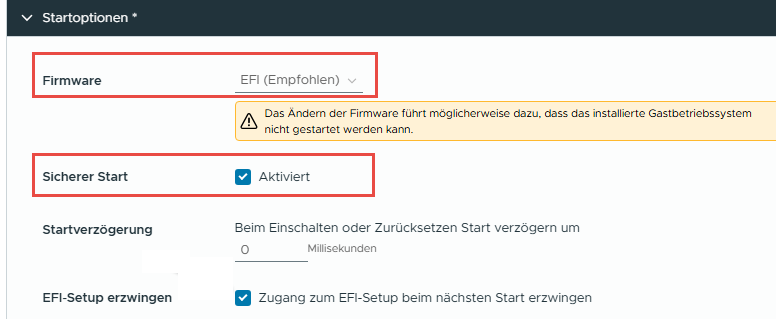
Adjust the VM settings in VMware:
-
- Firmware: EFI
- Secure Boot: Enable
2. Preparations for the in-place upgrade
Before upgrading, all system-related programs should uninstalled will be:
- Antivirus software
- Citrix VDA
- Citrix PVS Agent
Do not remove: e.g., Microsoft Office, standard software
After that:
- Restart VM
- Install all Windows updates
3. Start the Windows 11 in-place upgrade
After logging in to Windows 10:
- Insert the Windows 11 ISO
- Start the setup from the administrative command line:
setup.exe /product server
❗ Note: This method bypasses the compatibility check (CPU, TPM 2.0). Even though „Server“If „Windows 11“ is displayed, a standard upgrade to Windows 11 will take place. There are registry values from Microsoft that are supposed to allow a “bypass,” but in my experience, this hasn’t worked during an in-place upgrade.
4. After the upgrade: Cleanup and reinstallation
- Windows 11 launches successfully
- Uninstalled software with Windows 11-compatible versions reinstall
- Under Storage settings:
- Delete the old version of Windows (Windows.old)
5. Integration with Citrix PVS
Citrix PVS: DHCP Configuration
- DHCP options:
- Option 11
- Option 67 →
pvsnbpx64.efi
Problem: Parallel operation may be disrupted
Solution: Use the DHCP policy:
- Assignment via MAC address or Client Identifier
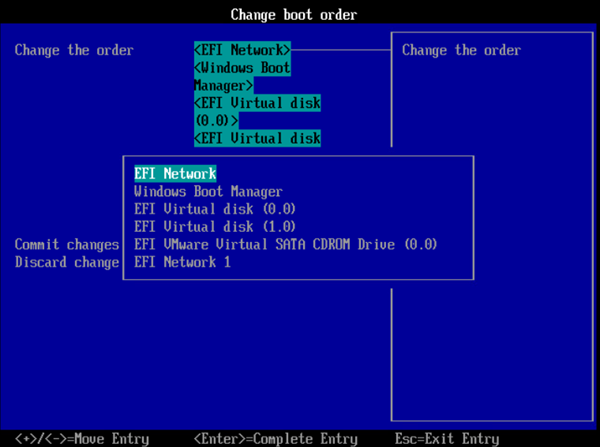
Configure network boot
- In EFI BIOS: Set network boot as the first option
Conclusion
This method results in a Fast and reliable in-place upgrade from Windows 10 to Windows 11—even in complex environments with VMware, Citrix PVS, or MCS. What’s important is the thorough preparation and the deliberate circumvention of the compatibility check.