

VMany of my clients struggle when it comes to certificates, and I’m just talking about the basics, not the entire PKI. On top of that, Citrix NetScaler is based on Linux, which seems to make things even more difficult. People also tend to overcomplicate things, which then makes it seem almost impossible. It should be normal to understand what you’re doing (at least to some extent), but many just want a step-by-step guide they can follow.
The above is my explanation of why many people have trouble with Netscaler and certificates. A detailed explanation of the „easy way“ won’t make it look as simple as the step-by-step guide, but once you understand it, it will make the whole process even easier.
I need to make certain assumptions and require some basic knowledge:
- You are primarily a Windows administrator (Linux isn't really your thing)
- You know how to create a certificate request in Windows, for example, in IIS
Request a server certificate using IIS (Use 2048-bit length) - You know how to export certificates using MMC/IIS
Export a server certificate using IIS (Use at least 5 characters for the password) - Basic Netscaler Knowledge
General Certificate Requirements
For me, there are two key points when it comes to certificates:
A: Always the Fully Qualified Domain Names (FQDN)! such as ctx.dom.com Using the hostname or, worse yet, the IP address is a NO WAY!
B: Use of the current public-key standard with a bit length of 2048-bit.
You should know that a higher bit length provides greater security, but on the other hand, it drastically reduces compatibility with other clients, devices, etc. A few years ago, the standard was still 512 bits, but since no one uses Windows 95 or similar systems anymore, it was increased to 2048.
For example: Citrix NetScaler VPX supports 4096-bit encryption for its own virtual servers but only 2048-bit encryption for back-end systems.
Explanation of the Simple Path
You can skip the explanation if you don't want to learn anything and scroll down to the step-by-step instructions.
Below, I will explain the process. It may seem difficult at first glance, but please take a minute to look at the images and understand the steps. I’ll start from the point after the certificate has been exported as a PFX via IIS or MMC. If you don’t know how to do that, go back to requirements 2 and 3.
The process is divided into two parts; the second part is often overlooked but absolutely must be done!
Part One – The Certificate
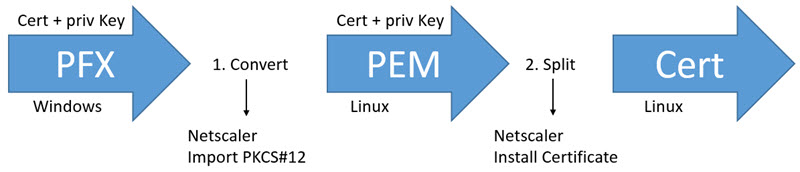
Two steps are required. First, convert the certificate format. The exported PFX file is a Microsoft-based format, and its Linux counterpart is the PKCS#12 format saved in a PEM file. Think of it as converting a JPG image to a PNG image. Since these files contain the private key, the data must be protected with a password (use at least 5 characters). Once the certificate is in the correct format, it can be installed and will be split into a certificate and a private key.
Here is a diagram of the process:
Part Two – The Certificate Chain
Hurray! We have a certificate in Netscaler, but does it work properly? It will work for some clients (mainly Windows clients), but others will receive a certificate warning or be unable to connect. Why is that? A certificate comes with a chain that indicates its origin—like a family tree. Typically, your certificate was issued by a root certificate authority (Certificate Authority, (a type of authority) and is referred to as a Root CA for short. There may also be an „intermediary“ that has been authorized by the authority; the certificate was obtained from this „intermediary“ and is called an intermediate Certificate Authority.
The certificate chain for such a certificate would look like this:
– Root CA (Authorized)
– Intermediate CA (Created)
– Server Certificate (Requested by you)
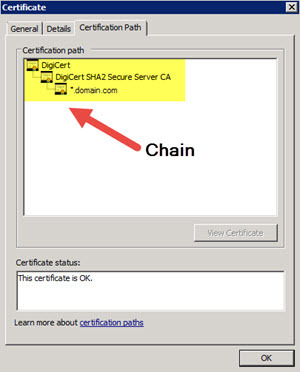
When importing (converting) the certificate, the chain not included and must be done via LINK The certificates can be restored. Use Windows again to export the root and intermediate certificates in DER format. Then simply install the exported certificates in Netscaler. The important part is then „linking“ the certificates to rebuild the chain.
Done! The certificate can now be bound to any Netscaler vServer.
Step-by-step instructions
Following the explanation, here are the step-by-step instructions:
Part I (Import Certificate)
- Export the certificate as a PFX file (minimum 5-character password)
- Export root and intermediate certificates in DER format
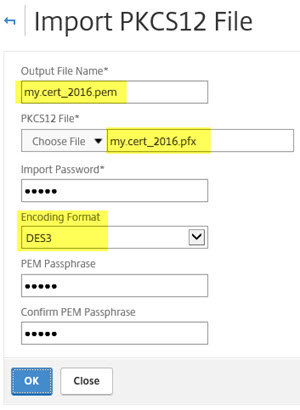
- Netscaler: Traffic Management / SSL / Import PKCS#12
PKCS#12 file: my.cert_2016.pfx
Output file name: my.cert_2016.pem
Encoding Format: DES3
Password = Passphrase <- can be the same - Click OK (Conversion complete!!)
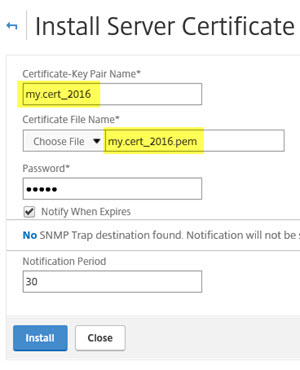
- Netscaler: Traffic Management / SSL / SSL Certificates / Server Certificates
Certificate File Name: my.cert_2016.pem
Certificate-Key Pair Name:my.cert_2016
Password = Passphrase - Click INSTALL (Done!)
Part II (Combining Certificates)
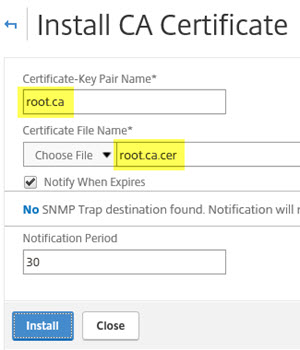
- Netscaler: Traffic Management / SSL / SSL Certificates / CA Certificates
Certificate File Name: root.ca.cer (intermediate.ca.cer)
Certificate-Key Pair Name: root.ca (intermidiate.ca) - Click INSTALL
- Netscaler: Traffic Management / SSL / SSL Certificates / CA Certificates
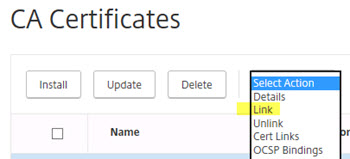
Select intermidiate.ca
Click Action then select Link - If the correct Root CA certificate is available (installed), it will be selected! Click OK!
- Netscaler: Traffic Management / SSL / SSL Certificates / Server Certificates
Select my.cert_2016
Click Action then select Link - If the appropriate intermediate or root CA certificate is available (installed), it will be selected! Click OK!
That's it! Now the certificate can be bound to vServers such as gateways, load balancers, etc.
Helpful tips along the way
- Use at least 5 characters for the password of PFX/PEM files that contain the private key.
- Use a 2048-bit public key; no more, no less
- The certificate name should be meaningful and include the date, such as ctx.dom.com_November 2018
where 11/2018 is the certificate's expiration date - Back up the certificates from the Netscaler using WinCP or Netscaler's own full backup
- Wildcard certificates *.dom.com make life easier in the long run
- Every company should have its own certificate authority and use SSL wherever possible!


 German
  English