ECustomers often have misunderstandings about how data flows or how the process works when establishing a Citrix HDX connection. It’s actually quite simple, but sometimes persistent misconceptions. In my experience, images often convey more than words alone. This is a two-part article, and the first part focuses on the internal connection setup for a Single FQDN Configuration and in the second part, we'll look at how the whole process works from the outside. We won't go into every single tiny detail here, but this should help clarify the basic process.
When establishing a connection, there are two significantly different parts: Listing applications and desktops, followed by the actual HDX connection. In the image, the listing is represented by the Internet Explorer icon on the client, since this primarily involves web-based communication. The HDX connection is then indicated by the Citrix Receiver icon.
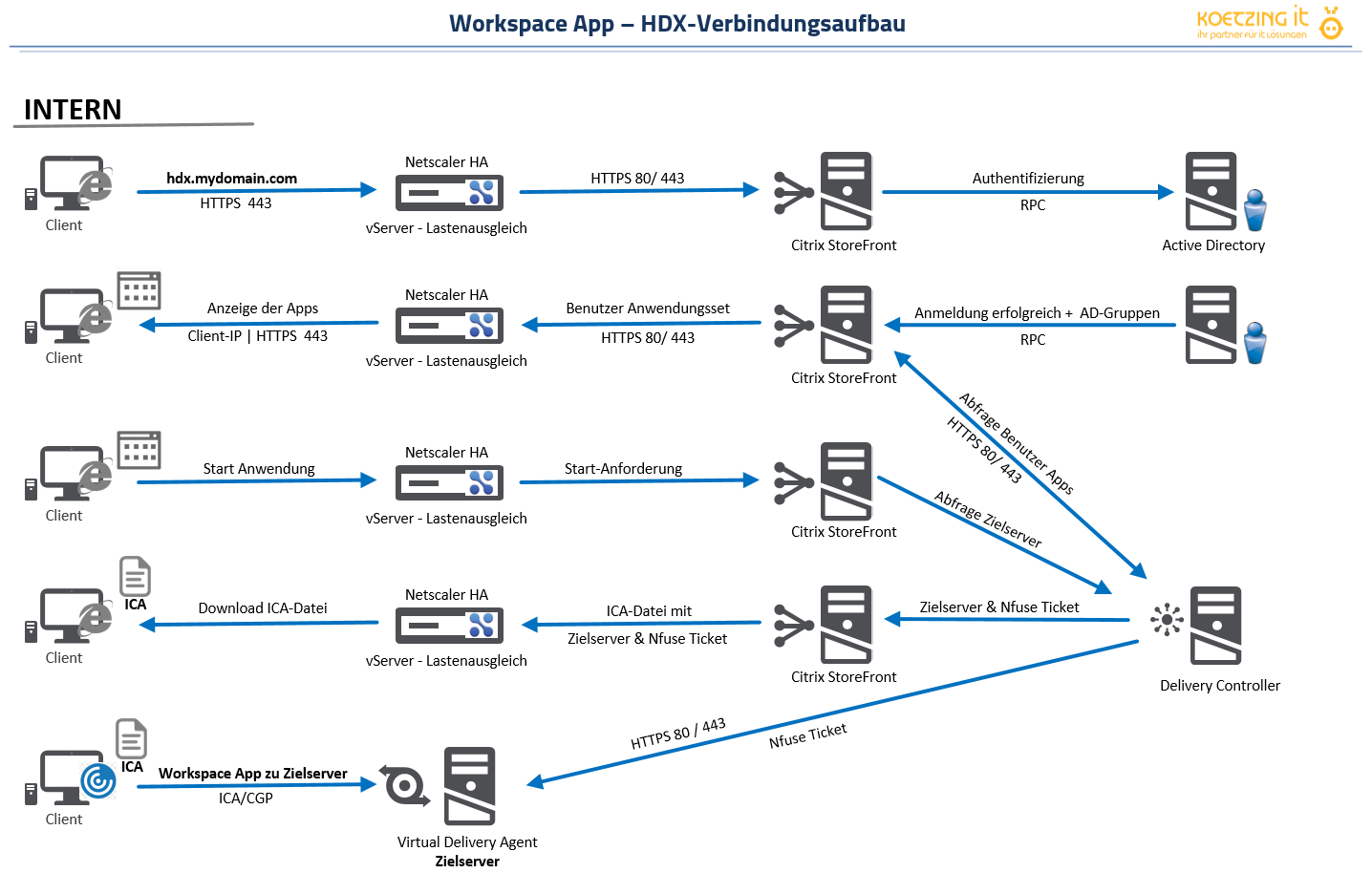
Note: For clarity, StoreFront and Delivery Controller are shown as two separate systems, but they could also be the same system.
NFuse Ticket = time-limited token for login
ICA file = Parameter file for Workspace App
Destination server = VDA with the lowest current load
Explanation
hdx-mydomain.com is the internal and external URL that users use to launch their applications and/or desktops. It begins with login and the return of the application set after successful authentication. These constitute the first two stages, and in the next two, the ICA file is downloaded.
Only in the final step is a direct HDX connection established between the client and the server, with authentication on the destination server handled by an NFuse ticket. At this point, it should be clear that the HDX connection does not go through either the StoreFront server or the Netscaler load balancer.
How does the data flow work when the user comes from an external source? This will be explained in the next section.