


AAs a freelancer, I often come across Citrix „pitfalls“ that clients tend to fall into. Since I've seen them so often, I can resolve them quickly—much to the surprise of the administrator in charge. For example, the client wasted nearly two days on issue #7, but I fixed it in just a few minutes.
Here is a list of common Citrix pitfalls:
- After setting up StoreFront, no one can log in. The StoreFront Delivery Controllers are configured and everything looks fine.
Common mistake: By default, StoreFront Delivery Controllers are set to HTTPS and TCP Port 443 and HTTP and port 80 aren't set! But XenDesktop Delivery Controller or XenApp use HTTPS/443 is not the default and therefore do not respond to any inquiries.
Quickly resolved: In the Delivery Controller settings, set the type to HTTP and the port to TCP 80.
Best option: Especially if StoreFront is also running on the Delivery Controller, enable SSL/443 using a private or public certificate.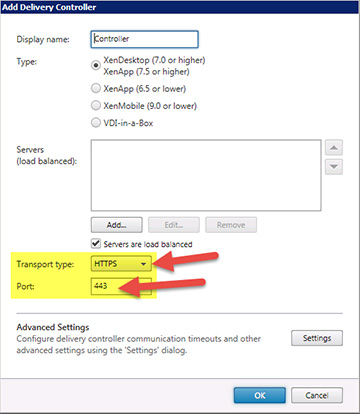
- Occasional issues launching applications via Netscaler Gateway using StoreFront or the web interface.
Common mistake: The Secure Ticket Authority (STA) servers are not the same in NetScaler Gateway and StoreFront/Web Interface
Quickly resolved: Using the EXACTLY the same STA server in Gateway and San Francisco/Wisconsin
Note: I recommend using the FQDN for STA servers and not changing the default port 80 for the XML service. - After authenticating at the Netscaler Gateway, the familiar StoreFront error message appears: „The request cannot be completed„I went through the excellent Citrix article CTX207162, but nothing changed.”.
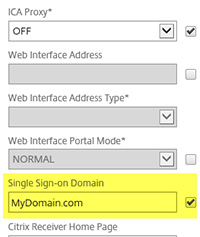
Common mistake: In StoreFront, the Trusted Domains e.g., with MyDomain.com set so that users only need to enter their login name. However, in the Netscaler Gateway session profile, the Single Sign-On (SSO) domain was set to MyDomain has been set, and therefore the SSO request cannot be completed because it is being rejected.
Quickly resolved: Adding MyDomain or changing the trusted domains in StoreFront to MyDomain.com
Note: Check the Citrix Delivery Services event log under Application and Service Logs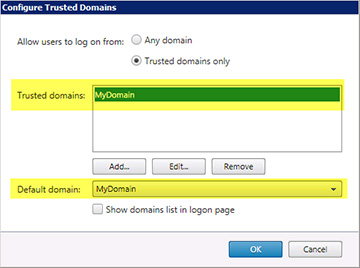
- Using the NetScaler VPX to load balance backend SSL systems such as Outlook Web Access without SSL offload. The load balancer is shown as offline.
Common mistake: Virtual Netscaler Appliances (VPX) only support up to 2048-bit key size on backend systems, and if the value is higher, an error occurs!
Quickly resolved: Switching to SSL offload can be quite easy with some backend systems.
Best option: Change the backend certificate to use a key size of only 2048 bits to maintain encryption security.
Note: Check the Netscaler Monitor; it should display a message indicating a synchronization issue. - You notice that the Netscaler (gateway) time is no longer synchronized, which is causing some issues. The NTP server has been configured.
Common mistake: NTP synchronization is not enabled. After the NTP server has been configured MUST synchronization can still be enabled
Quickly resolved: Under "NTP Service Actions," enable synchronization
Note: If the time is still not synchronized, use the Netscaler CLI to verify that the NTP daemon has actually started.
Link: Read more about this topic The Importance of Time in a Netscaler HA Setup - When using the XenMobile Wizard in Citrix NetScaler, select SSL offloading to the XenMobile Server. Once it's finished, nothing works.
Common mistake: SSL offload is enabled by default NOT active on the XenMobile Server and the wizard does not indicate
Quickly resolved: Enable SSL offload in the XenMobile Server CLI
Best option: Use SSL for XenMobile
Note: For greater security, you should use SSL; this is why Citrix has disabled SSL offload by default. - Are you having trouble finding the correct VMware vCenter root certificate to get XenDesktop hosting to work?
Common mistake: Didn't look closely enough 😉
Quickly resolved: On the vCenter login page, you will find the root certificate on the right-hand side. After downloading it, rename it to ZIP. Unzip the file and rename the "01" file to "cer." This is the required root certificate.
Note: Check the certificate for the FQDN; newer versions usually also include the server FQDN. - You are using SecureHub to start HDX sessions, but you can't find the HDX settings for display, etc.
Common mistake: Even if you don't configure the receiver (required for HDX) using SecureHub, you still need to create an account in the receiver to access the HDX settings!
Quickly resolved: As far as I know, there's no other option here besides creating an account.
Note: Not really a pitfall, but rather something Citrix has overlooked for years now. - Single Sign-On isn't working
Common mistake: XML Trust has not been enabled
Quickly resolved: With XenDesktop 7.x, the trust must be enabled via PowerShell
Note: Up until XenApp 6.5, the trust could be easily enabled in the console.
PoSh:Set-BrokerSite -TrustRequestsSentToTheXmlServicePort $true - Launching multiple sessions using the same Active Directory user account
Common mistake: Multi-session mode must first be enabled
Quickly resolved: With XenDesktop 7.x, this must be enabled via PowerShell, just as with Trust
Note: Up until XenApp 6.5, this could be done easily in the console.
PoSh:Set-BrokerEntitlementPolicyRule -SessionReconnection DisconnectedOnly - Launching Citrix sessions via Web Interface or StoreFront takes a long time or doesn't work at all.
Common mistake: A proxy server is being used, and the Citrix client uses the browser settings
Quickly resolved: In the default.ica file for strictly internal Set the proxy entry to NONE for connections.
Note: Anyone using internal proxy servers should pay special attention to Citrix.
CTXKB: StoreFront Client Proxy Configuration – https://support.citrix.com/article/CTX136516
Would you like to add anything? Please leave your comments below!

Thank you so much for the great article. I'm currently having a hard time with Storefront. I have the latest version installed on a Windows Server 2016.
Access via HTTP. Logging in works fine, and I can see all the applications. However, I can't launch any applications with the new clients. It takes forever to try to launch the application, and then I get the error message "Network connections to the application have been interrupted." I have set the settings in the default ICA file to "no proxy.".
Connecting to older clients works without any problems.
Maybe someone has a tip for me 🙂
Thank you very much
If you have any questions or issues, please use the free forum!
Hello,
The following message appears in the desktop window
„Due to an SSL error, a connection could not be established to the (tsr.seva.$$$$.de:443) server. $$$$ = company domain"
The following transaction ID is also displayed: d52ab70b-ca09-4d6a-84fb-dd3f7bf0b2d6
Best regards, Jürgen
Hello Thomas Kötzing,
get it back, but that then results in the „1000004.SSL Error 4.“.