


Microsoft OneDrive is part of Office 365 and is increasingly being used by companies. This article is about how Microsoft OneDrive can be used in virtual desktop infrastructures (VDI). The focus of the article is on Multi-user environments with Server 2019 or Windows 10 VWD, but it can also be used in other scenarios.
OneDrive can save the user profile grow very quickly and requires more local or on-prem storage capacity. In addition, users change end devices frequently, which again has an impact on the Registration times has. I would like to explain in more detail below how to use OneDrive correctly in VDI environments.
Microsoft OneDrive problem in VDI environments
Let's start with the fact that OneDrive was developed for single-user systems and not for multi-user systems, which is a problem in itself. VDI environments are normal these days and understandably companies want to use OneDrive on these desktops. OneDrive synchronizes data between the user device and the Microsoft Cloud, but nothing more. Moving customers all your data to the Microsoft Cloud in order to Storage capacity requirement in your own data center. Initially, OneDrive synchronized all of the user's data or selected data to the user's device.
In this way, however, the data is returned to the company, only distributed across different end devices. In a VDI environment, the data is stored in the user's profile and then finally on a storage system in the data center. So nothing is gained, except that the data is now more distributed.
Microsoft has recognized this problem and has thus developed the „Files on demand“ has been introduced. With „Files on demand“, no data is synchronized automatically, but only when the user needs it. This is great, as it reduces the amount of data and prevents it from ending up in the data center. However, users can quickly request all data and thus „inflate“ the profile again and thus require storage space in the data center. To ensure that the login is still fast with the profile sizes virtual disks used as with FSlogix or Citrix UPM container disks. Nevertheless Storage capacity required and that's exactly what you didn't want. By the way, „Files on demand“ requires Server 2019 or Windows 10 with the new file attributes for cloud content.
Another piece of the puzzle to solve the problem is Microsoft Storage Sense. With Storage Sense, cloud content is automatically shared, i.e. deleted locally but remains in the cloud. The same process works with OneDrive and right-clicking on a file. Here there is then the item „Free up storage space“ and thus also deletes the file locally.
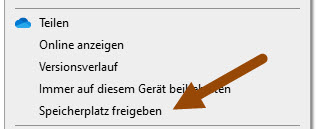
With Server 2019, the per-user Storage Sense policies must be configured via Powershell (later via GPO). The minimum for cloud content before it is released is one day, but the cleaning process of the system also runs at least once a day.
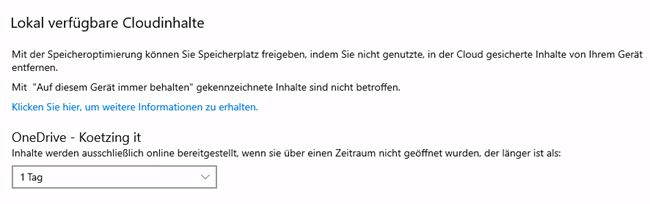
In VDI environments, the again a problem! The cleaning process only runs once a day and nobody knows when! With users who may log on and off several times a day, it can be difficult to know exactly when the cleanup is running. This means that it may never run for users or, when it does finally run, the virtual disk may have grown so much that it has to be compressed again.
In the end, we used Storage sense and files if required nothing gained. Now the folder or content of OneDrive could simply be deleted completely when logging out or simply not taken along, e.g. via the FSLogix redirection.xml. However, I have to advise against this, as it is not possible when starting OneDrive often crashes of the application.
The OneDrive VDI workaround
What would be necessary for VID environments is for Storage Sense to carry out the cleaning process when the user logs out, thereby releasing all cloud content. Unfortunately, this is currently not an option with Storage Sense. There should be a Storage Sense option like: „Sharing files when logging out“ and not only after one day. There are instructions to execute the following command cleanmgr.exe /autoclean /d, to share files, but this does not work on a per-user basis.
The solution is to run a Powershell script on logoff, and it doesn't even require Storage Sense to be configured! The script goes through the user's entire OneDrive folder and releases downloaded cloud content. This does not include files that have been marked to remain on the device or URL files. This means that the files are no longer in the profile and keeps the amount of data to an absolute minimum. This is exactly what is needed in a VDI environment. In addition, no exceptions or anything else needs to be configured for OneDrive.
The disadvantage is a possible short-term increase in CPU usage when the script is executed. Also, no FSLogix Office Container can be used, as this extra disk is immediately disconnected when logging off and the script will not find any folder or content from OneDrive.
The Powershell script can be executed via Microsoft Group Policy or via Citrix Workspace Environment Manager version 1912 on logoff. The Download link The Powershell script can be found at the end of the article.
The mysterious OneDrive problem
Even after several years and even outside of VDI environments, there is still an unsolved OneDrive problem! For still unknown reasons, OneDrive data is being deleted as if by „magic“.“ deleted or moved to the trash moved. Some users report that thousands of files have suddenly been deleted and then have to be laboriously restored online. As the problem is not reproducible, Microsoft is also finding it incredibly difficult to rectify this error. If there is a solution, I would be very interested in it!
PowerShell Download Link
The download is only possible with your name and e-mail address. If you do not wish your data to be saved, simply send me an e-mail or do not download the file.
Download: free-up-space.ps1
Let me know what you think about my way of using OneDrive!

 German
  English
Unfortunately the download does not work
Fixed.